AvaTax for Communications
Communications REST v2 Dev Guide
Getting Started
Calculate Taxes
Commit/Uncommit
Customizing Transactions

Account Customizations
Transaction Use Cases
- Simple Request
- Multi-line Request
- Jurisdiction Determination
- Interstate/Intrastate Determination
- Tax Override
- Safe Harbor Override
- Private Line
- Proration
- Transaction Information
- Exclusions
- Transaction-Level Commit/Uncommit
- Invoice Date
- Invoice Mode
- Optional Fields
- Adjustments
- Tax Inclusive
- Displaying Tax Results
- Quantity
- Request Config
Exemptions
Sales and Use
Jurisdiction Determination Use Cases
Reference
Calculating Tax Offline
AvaTax for Communications Use Cases
FAQ
Chapter 1.4 - Demo Application

Use the C# Communications REST v2 Demo Application to see how to integrate with and call the CalcTaxes and Geo Batch REST v2 APIs.
Download the Demo Application
- Navigate to the Avalara/Communications-Developer-Content repo on GitHub
- Clone the master branch of the Avalara/Communications-Developer-Content repository locally
- To run the application:
- Navigate to .\afc_saaspro_tax\afc_rest_apis\AfcRestDemoApp in the local repository
- Launch RestDemoApplication.exe
- To view the source code and build the application:
- Navigate to .\afc_saaspro_tax\afc_rest_apis\AfcRestDemoSource in the local repository
- Open RestDemoApplication.sln in Microsoft Visual Studio
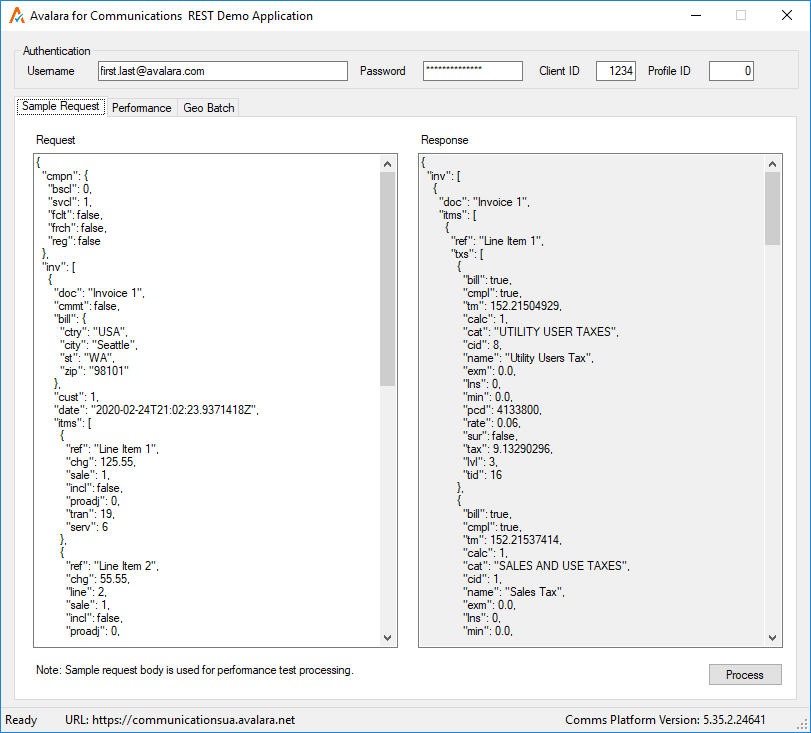
Run a Sample Transaction
- Enter your REST v2 Username, Password, and Client ID
- In Profile ID, enter:
client_profile_idto use an existing client profile (if applicable)0to use the default profile- Modify the Request or simply use the transaction provided
- See Customizing Transactions for sample transactions
- Click Process to run the transaction
Run a Performance Test
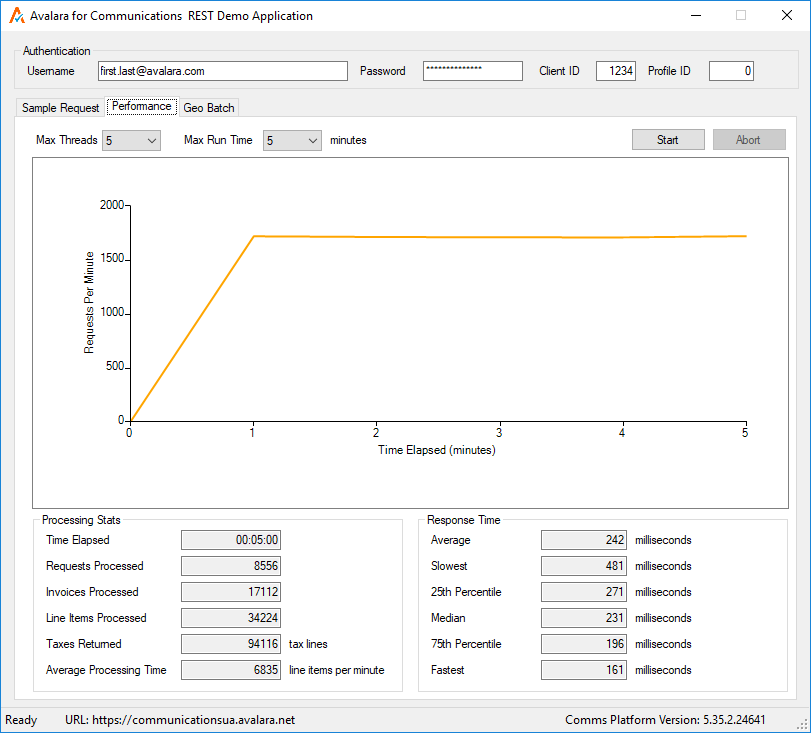
- Navigate to the Performance tab
- Set Max Threads and Max Run Time
- Click Start to start a performance test
The results of the test are displayed within the Performance tab.
Run Geo Batch
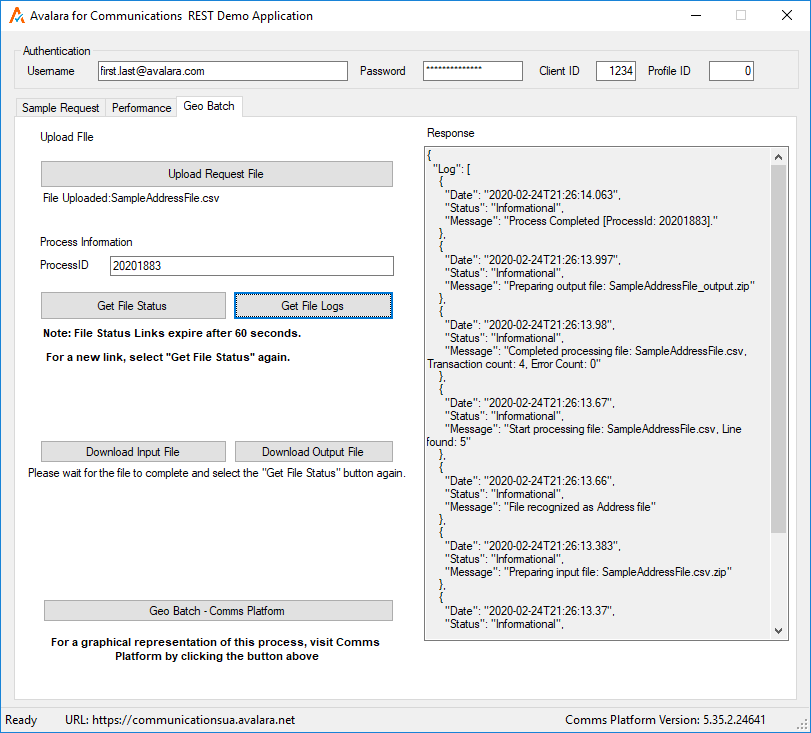
Use the Geo Batch tab to upload an address or latitude/longitude CSV file and see the results.
- Upload Request File - upload a CSV input file
- Get File Status - Get the input and output file links
- Download Input File - Download the request file
- Download Output File - Download the results file
- Get File Logs - See the status details of the request
For more information about Geo Batch, see Geo Batch.
The results of the Geo Batch test are displayed within the Geo Batchtab.